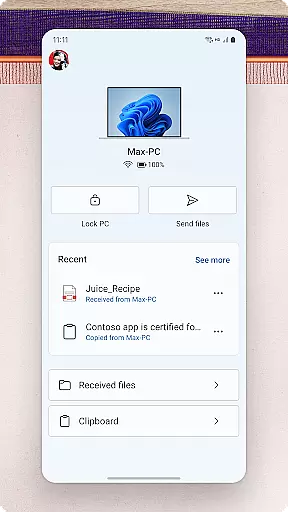
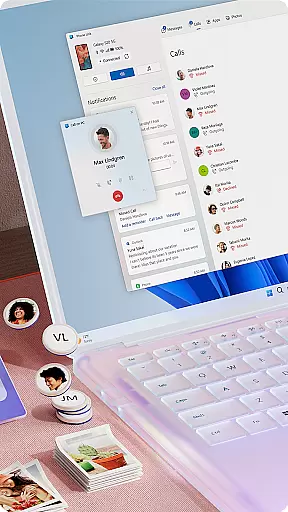
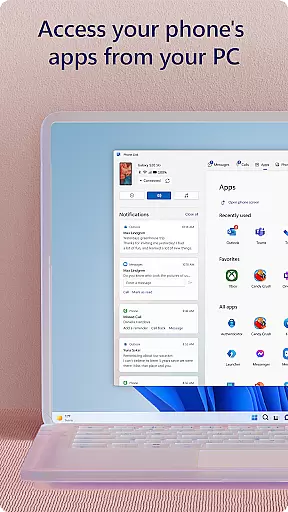
Link to Windows is a productivity-focused application that bridges the gap between your Android phone and Windows PC. This app allows users to seamlessly interact with their mobile devices directly from their computers, streamlining workflows and enhancing multitasking capabilities. Key functionalities include managing notifications, making calls, and accessing mobile apps on the PC.
The app supports advanced features like drag-and-drop file sharing, cross-device copy-paste, and instant photo access. These tools are particularly valuable for professionals who need to transfer data quickly between devices or control their phones without interruption. With integration into select Samsung, Microsoft Duo, and HONOR phones, Link to Windows offers an optimized experience for compatible devices, ensuring maximum efficiency and convenience.
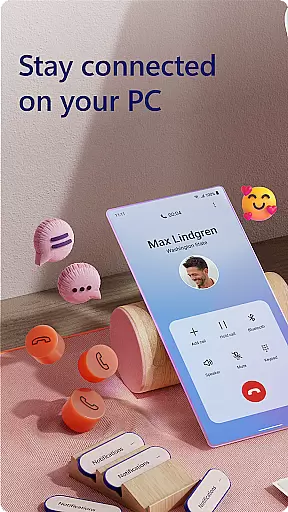
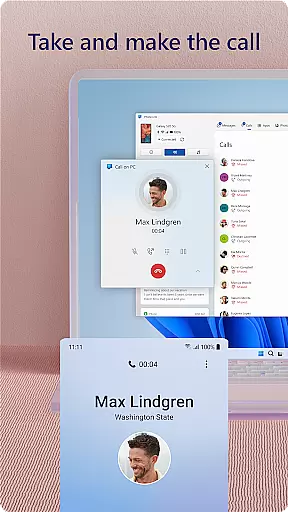
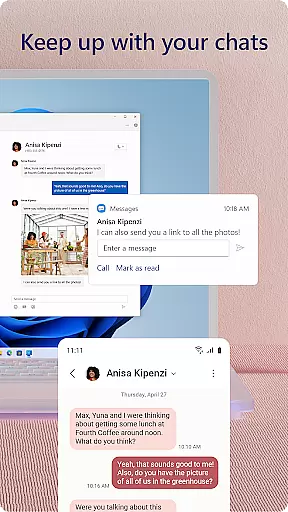
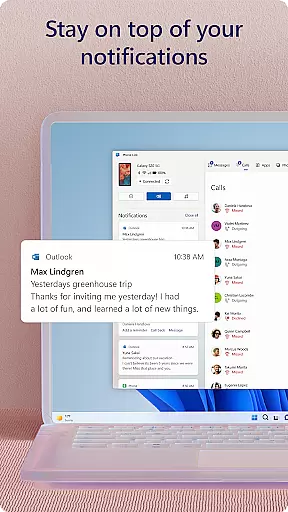
Link to Windows stands out with its robust feature set tailored for productivity enthusiasts. One of its core strengths is the ability to make and receive calls directly from the PC, provided the system meets Bluetooth requirements. Additionally, users can manage Android notifications, reply to text messages, and even run favorite mobile apps on their desktops, creating a unified workspace.
Advanced capabilities such as drag-and-drop file transfers, cross-device copy-pasting, and phone screen mirroring further enhance usability. These features are especially beneficial for those handling large files or needing real-time updates across devices. For optimal performance, certain functions require specific hardware configurations, such as Android 11.0 and at least 8GB of RAM on the PC. The accessibility service also caters to users relying on screen readers, offering full app control via keyboard navigation.
Link to Windows excels in core task management by seamlessly integrating your Android phone and Windows PC. This allows users to handle calls, text messages, notifications, and even mobile apps directly from their computer.
The app enables multitasking features such as making and receiving calls from your PC, managing Android notifications on the desktop, and accessing favorite mobile apps without needing to touch the phone. These capabilities streamline daily workflows and enhance productivity.
For those who require efficient task handling, Link to Windows offers a unified workspace where you can reply to texts, manage notifications, and interact with mobile apps using your PC's larger screen and input devices. This minimizes the need to switch between devices constantly.
Ultimately, this integration provides a cohesive digital environment that boosts efficiency. Users can focus on more important tasks while the app manages cross-device interactions effortlessly, ensuring a smooth and productive experience.
Cross-device synchronization is a standout feature of Link to Windows, ensuring reliable real-time updates between your Android phone and Windows PC. The app leverages advanced connectivity protocols to maintain seamless data flow.
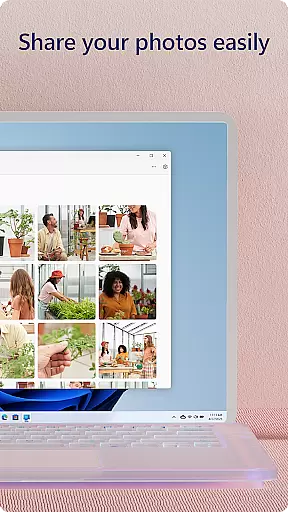
Key functionalities include the ability to drag and drop files between devices, copy and paste content across platforms, and instantly access photos stored on your phone. These features are supported by robust synchronization mechanisms that guarantee data integrity and availability.
Compatibility with select Microsoft Duo, Samsung, and HONOR phones enhances the synchronization experience. Exclusive features like cross-device copy-paste, file sharing, and app access are optimized for these devices, providing an uninterrupted workflow.
This reliable synchronization empowers users to work efficiently across devices without worrying about data loss or delays. Whether transferring files or accessing phone content, Link to Windows ensures that all actions are performed swiftly and accurately, enhancing overall productivity.
Seamless cross-device integration
Enhanced multitasking abilities
User-friendly interface design
Advanced file sharing options
Optimized for select devices
Limited call functionality
Requires specific hardware
Some features need Android 11
Compatibility restrictions apply
Bluetooth dependency for calls
Professional calendar app for Google Calendar, MS Outlook & Exchange
 4.20
4.20
Planet Free VPN - The best Fast Unlimited and Secure VPN Without Logs
4.50
A simple, portable logger for POTA, SOTA, Field Day, and more
4.4
Mind Map and brainstorm, note taking and idea collection
4.80
Fill, sign & send docs, forms, agreements & contracts via electronic signature.
4.50
Multilingual translator for text, voice, and image translation!
4.90
Create and edit presentations with Google Slides, part of Google Workspace.
4.00
Understand anything with a personalized AI research assistant
4.80
Daily processing of PDF documents.
4.40
App lock - lock apps with fingerprint, password, pin or pattern, protect privacy
4.70
The long-awaited modern gallery app for your Nextcloud server
4.70
The Pro Version of Android's tiniest Notepad app. Just 0.3MB but feature-packed!
4.60
All document reader, all in one file viewer read PDF, DOCX, XLS, PPT, TXT files.
4.60
Docker, Kubernetes management over Portainer Mobile
4.40
A customizable calendar for your Wear OS watch
4.20
Device's storage information in a simple and clear graphical form (infographics)
4.10
Experience real multitasking on your Android!
4.00
* block pre-roll ads, pop-up and forced redirect ads * Samsung certification app
4.00
Auto-shutoff Alarm with Sunrise, Sunset & Fixed Options.
3.50


User Reviews